How to Boost WiFi Signal Strength: 10 Proven Methods
Weak WiFi signal driving you crazy? Dead zones in your bedroom? Wondering how to boost WiFi signal? Pages taking forever to load? You’re not experiencing bad internet – you’re experiencing poor WiFi signal strength. And it’s easier to fix than you might think.
While basic troubleshooting can fix connection problems (check out our guide on how to fix WiFi problems if you’re having connectivity issues), boosting your WiFi signal strength requires a different approach. This comprehensive guide will show you 10 proven methods to extend your WiFi coverage, eliminate dead zones, and enjoy faster internet in every corner of your home.
Whether you’re working from home, streaming 4K content, or gaming online, these practical solutions will help you achieve the strong, reliable WiFi signal you deserve. Let’s get started.
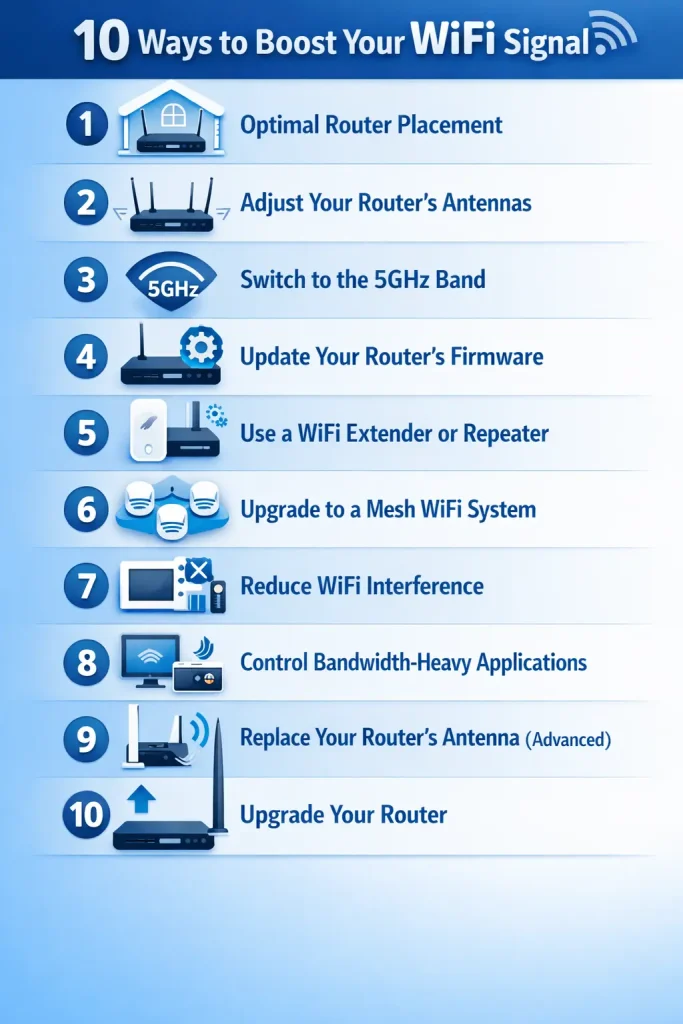
1. Find the Optimal Router Placement
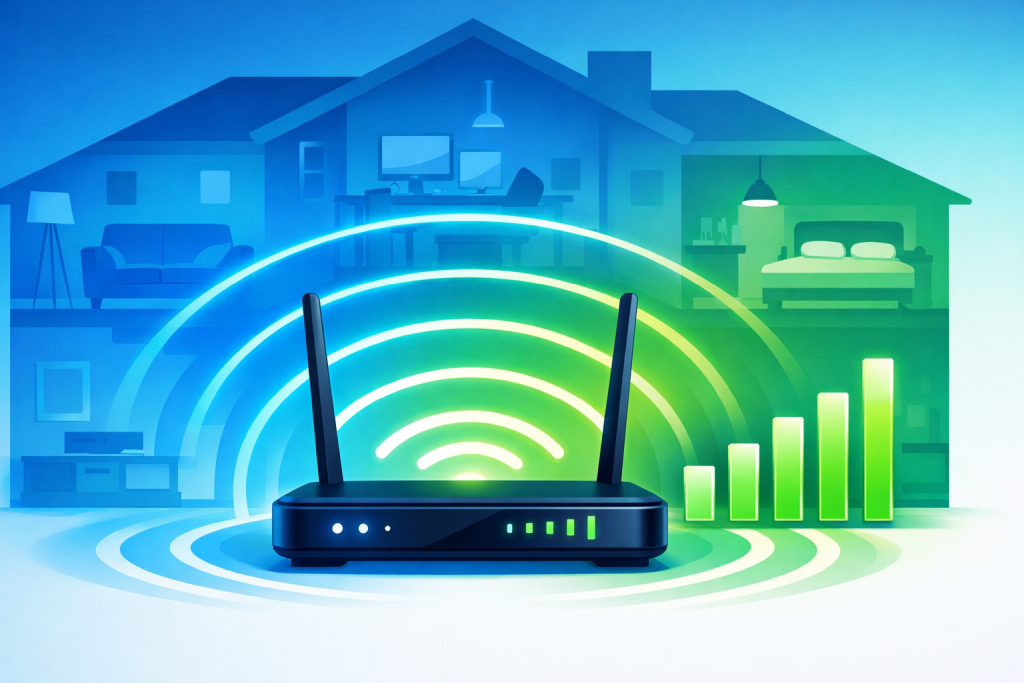
Router placement is the single most important factor affecting your WiFi signal strength. WiFi signals radiate outward in all directions, so placing your router in the wrong spot immediately limits your coverage before you even consider other factors.
The Perfect Router Location:
- Central position in your home (not in a corner or against an exterior wall)
- Elevated height – place it on a shelf or mount it high on a wall (WiFi signals spread downward and outward more effectively)
- Open space – never hide it in a closet, cabinet, or behind furniture
- Away from interference sources like microwaves, cordless phones, baby monitors, and Bluetooth devices
- Distance from metal objects, mirrors, and fish tanks (these reflect or absorb WiFi signals)
- Ground floor location for multi-story homes (signals travel down more easily than up)
For large homes or unusual layouts, you might need additional solutions like WiFi extenders or mesh systems, which we’ll cover below
2. Adjust Your Router’s Antennas
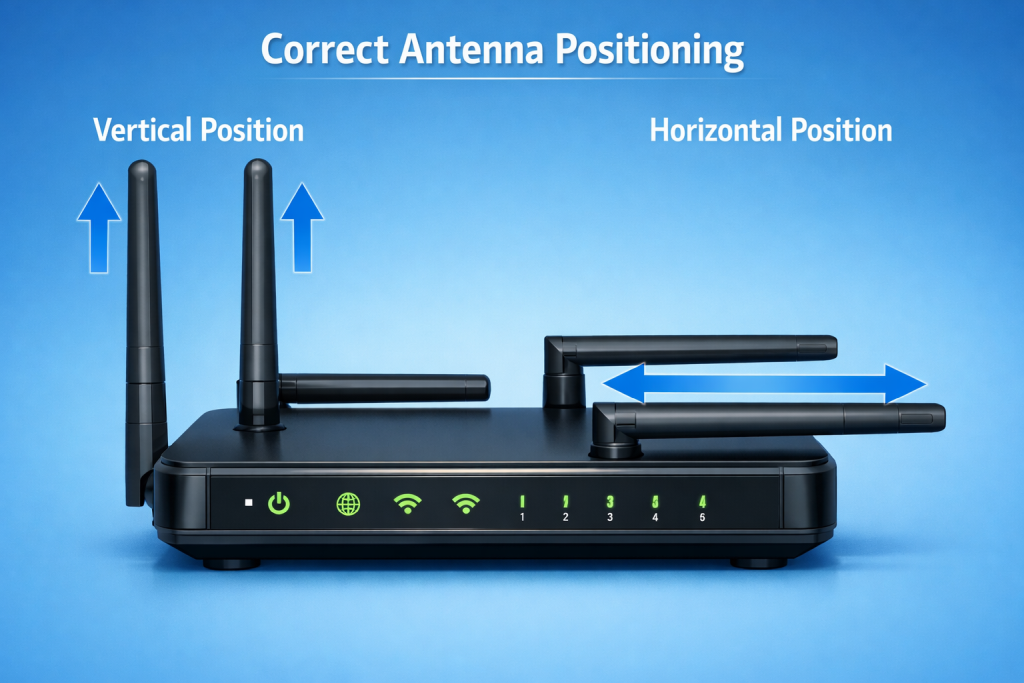
If your router has external antennas, proper positioning can significantly improve signal distribution throughout your home. Many people leave antennas in their default position and never think about them again – but strategic adjustment makes a real difference.
Antenna Positioning Strategy:
For routers with two antennas:
- Position one antenna vertically (pointing straight up)
- Position the other horizontally (parallel to the surface)
- This creates optimal coverage for both horizontal and vertical orientations of devices
For routers with three or more antennas:
• Alternate between vertical and angled positions (0°, 45°, 90°)
• Point some antennas toward areas with weaker coverage
• Experiment with different configurations and test signal strength in problem areas
Pro tip: Laptop and tablet WiFi antennas are usually positioned horizontally, while smartphone antennas are vertical. Mixed antenna positioning ensures strong signals for all device types.
3. Switch to the 5GHz Band
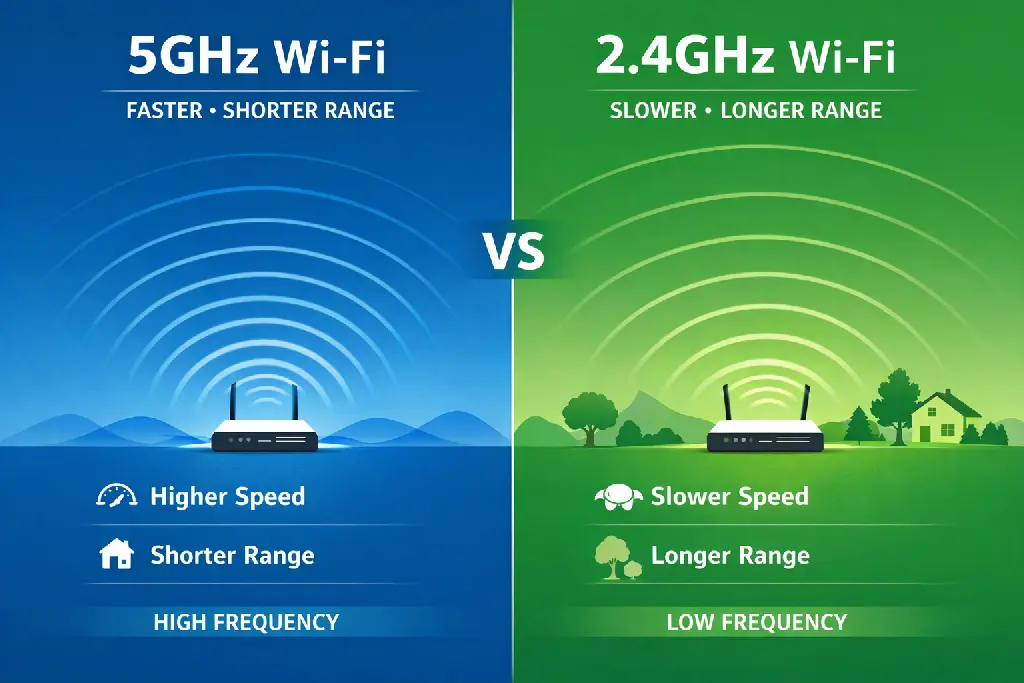
Modern routers broadcast on two frequencies: 2.4GHz and 5GHz. Understanding the difference and choosing the right band for each device can dramatically improve your WiFi performance.
2.4GHz Band:
• Longer range (penetrates walls better)
• Slower maximum speeds (up to 600 Mbps)
• More interference (shared with Bluetooth, microwaves, cordless phones)
• Best for: Smart home devices, distant rooms, devices that don’t need high speed
5GHz Band:
• Shorter range (doesn’t penetrate walls as well)
• Much faster speeds (up to 1300 Mbps or more)
• Less interference (fewer devices use this band)
• Best for: Gaming, 4K streaming, video calls, devices close to the router
How to switch: Connect to your network name that includes “5G” or “5GHz” in the name. If you don’t see separate networks, log into your router settings and enable separate SSIDs for each band.
4. Update Your Router’s Firmware
Outdated router firmware can significantly reduce your WiFi performance. Manufacturers regularly release firmware updates that improve signal strength, fix bugs, patch security vulnerabilities, and add new features. Yet most people never update their routers.
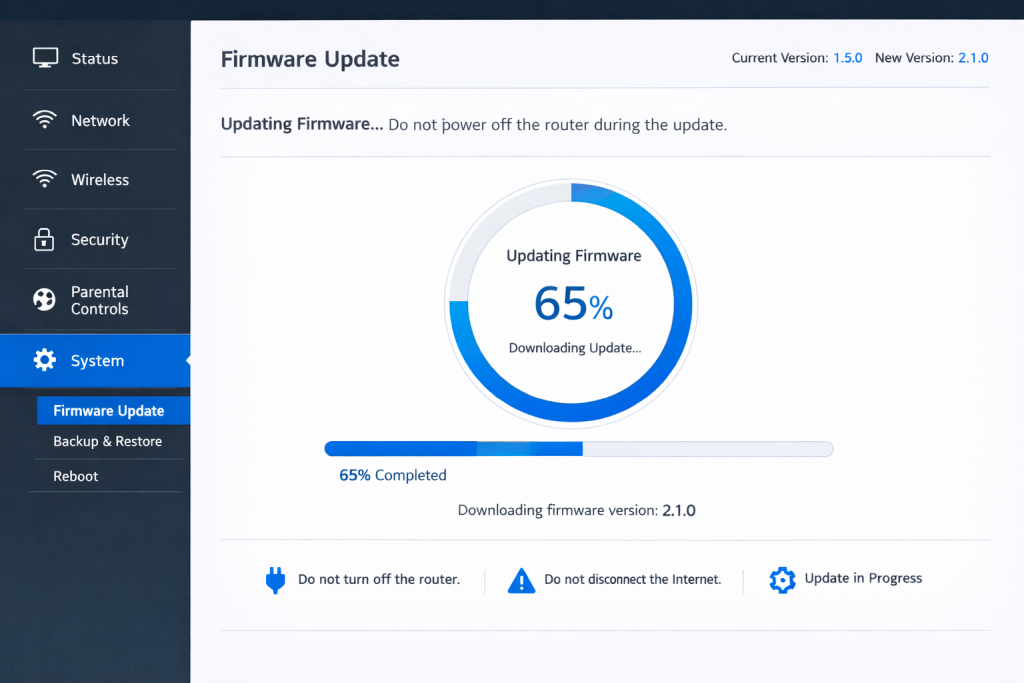
How to Update Router Firmware:
- Open a web browser and type your router’s IP address (usually 192.168.1.1 or 192.168.0.1)
- Log in with your admin credentials
- Look for “Firmware Update,” “Router Update,” or “Administration” section
- Click “Check for Updates” or “Update”
- If an update is available, download and install it
- Wait for the router to restart (don’t turn it off during this process!)
Some modern routers have automatic firmware updates. Enable this feature if available to ensure you always have the latest improvements.
Important: Never interrupt a firmware update. A failed update can brick your router, rendering it unusable.
5. Use a WiFi Extender or Repeater
WiFi extenders (also called repeaters or boosters) are affordable devices that capture your existing WiFi signal and rebroadcast it to areas with weak coverage. They’re perfect for eliminating dead zones in specific rooms without replacing your entire router.
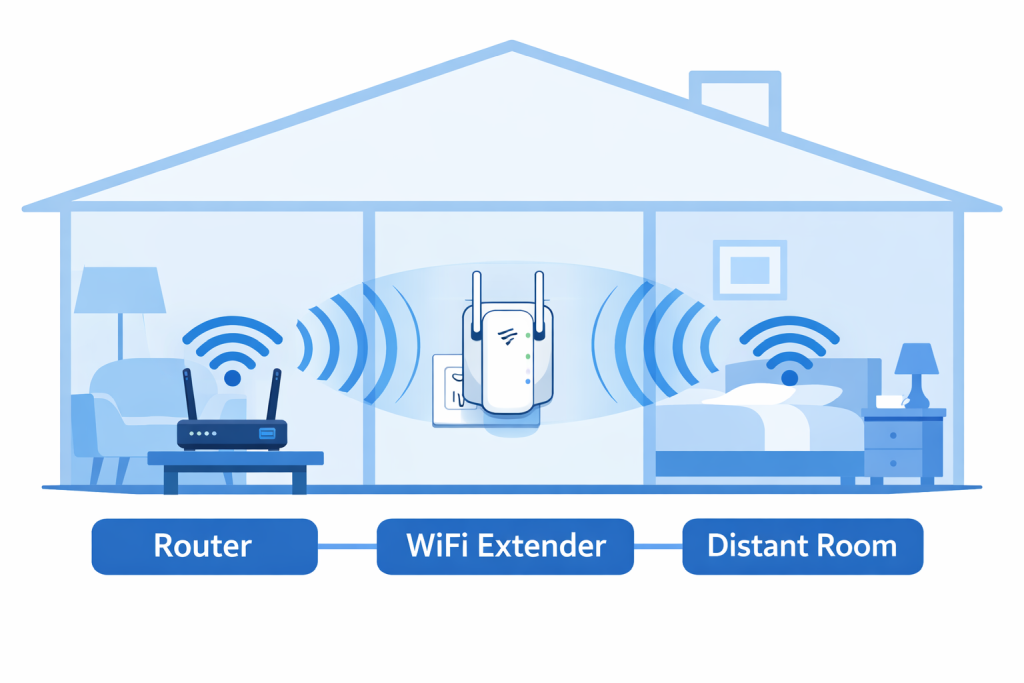
How WiFi Extenders Work:
WiFi extenders receive your router’s signal and retransmit it, effectively creating a second coverage area. They’re ideal for extending coverage to basements, garages, backyards, or distant bedrooms.
Optimal Extender Placement:
• Place it halfway between your router and the weak signal area
• Ensure it still receives a strong signal from your router (most have indicator lights)
• Avoid placing it too far from the router – weak input = weak output
• Keep it in open spaces, not inside cabinets
• Plug directly into wall outlets (not power strips) for best performance
Pros: Affordable ($20-$100), easy setup, extends coverage to specific areas
Cons: Can reduce speed by 50%, creates a separate network in some cases, potential for increased latency
Alternative: Powerline adapters use your home’s electrical wiring to extend network coverage – a great option if WiFi signals can’t penetrate thick walls.
6. Upgrade to a Mesh WiFi System
For complete home coverage without compromises, mesh WiFi systems are the gold standard. Unlike traditional routers with extenders, mesh systems use multiple nodes that work together seamlessly, creating a single unified network with no dead zones.
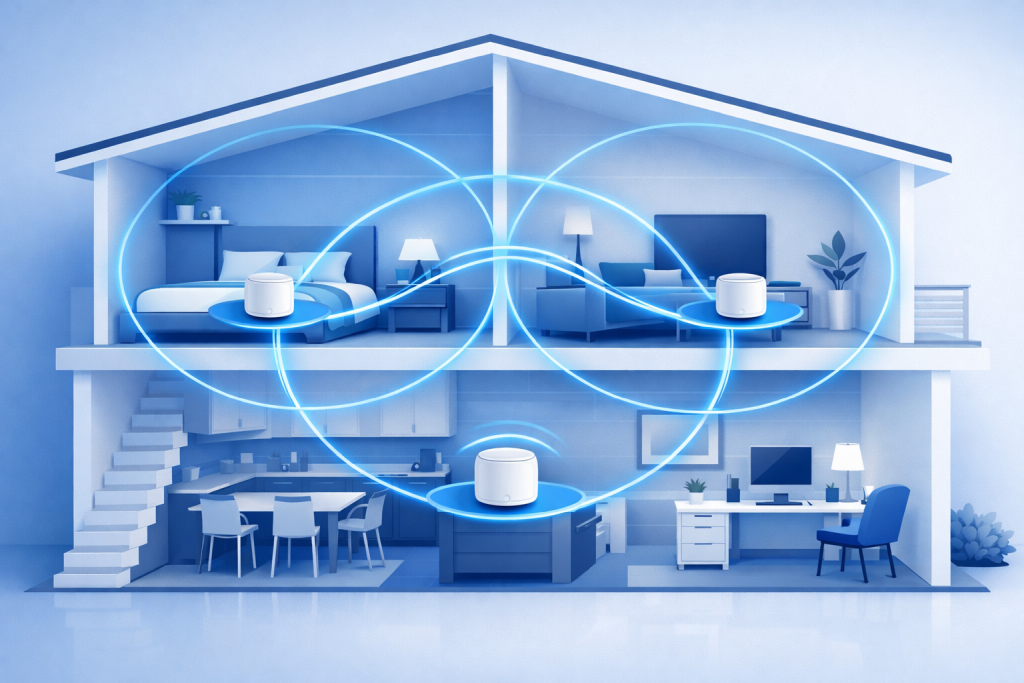
How Mesh WiFi Works:
A mesh system consists of a main router plus satellite nodes placed throughout your home. Each node communicates with the others, automatically routing your devices to the strongest signal as you move around. You stay connected to one network name – no manual switching required.
Benefits of Mesh Systems:
• Seamless roaming (devices automatically connect to the strongest node)
• Single network name (SSID) throughout your home
• Minimal speed loss compared to extenders
• Easy app-based setup and management
• Scalable (add more nodes as needed)
• Better performance for smart home devices
When to Choose Mesh WiFi:
• Homes larger than 1,500 square feet
• Multi-story houses with WiFi dead zones
• Homes with thick walls or unusual layouts
• When you need reliable coverage outdoors
• If you have 15+ connected devices
Popular mesh systems include Google Nest WiFi, Amazon eero, Netgear Orbi, and TP-Link Deco. Expect to invest $200-$500 for a quality system that covers 3,000-5,000 square feet.
7. Reduce WiFi Interference
WiFi operates on radio frequencies that can be disrupted by various household devices and materials. Identifying and minimizing interference sources can immediately improve signal strength without spending a penny.
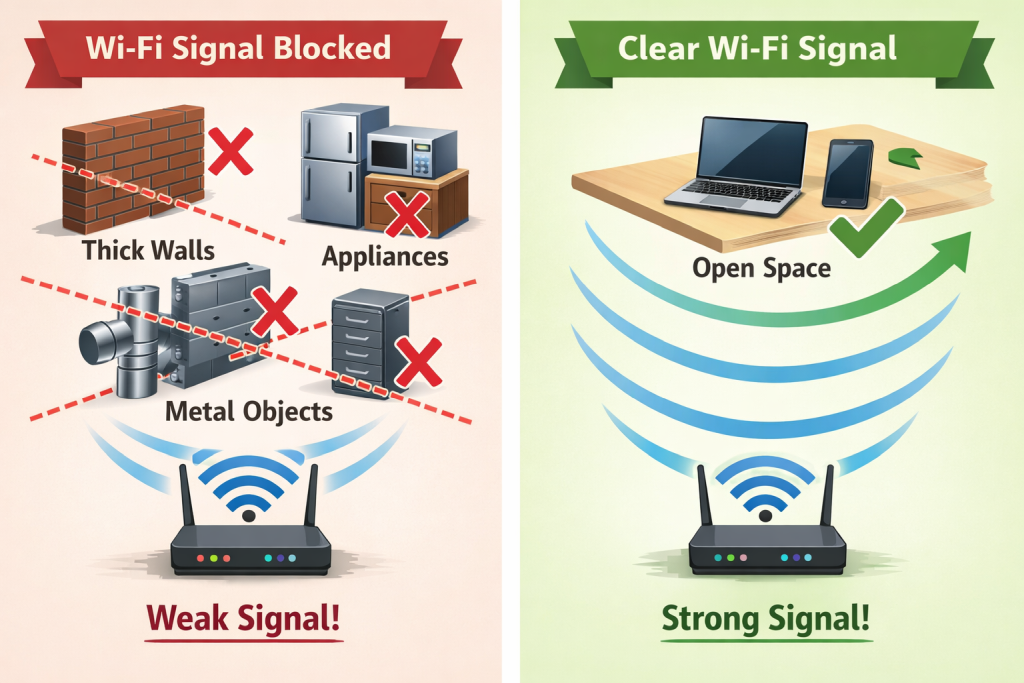
Common WiFi Interference Sources:
Electronic Devices:
• Microwave ovens (operate on 2.4GHz, same as WiFi)
• Bluetooth devices
• Baby monitors
• Cordless phones (especially 2.4GHz models)
• Wireless security cameras
Physical Obstacles:
• Thick walls (especially concrete or brick)
• Metal objects (filing cabinets, refrigerators)
• Mirrors (reflect WiFi signals)
• Water (aquariums, water heaters)
• Large furniture
Solutions:
• Move your router away from interference sources
• Switch to 5GHz band to avoid 2.4GHz interference
• Change your WiFi channel to avoid neighbor’s networks
• Replace 2.4GHz cordless phones with DECT 6.0 models
• Keep router in open space, not enclosed
8. Control Bandwidth-Heavy Applications
Your WiFi signal strength might be perfect, but if bandwidth-heavy applications are hogging your network, everyone suffers. Managing which devices and applications get priority access ensures critical activities get the speed they need.
Quality of Service (QoS) Settings:
Most modern routers include QoS features that prioritize traffic from specific devices or applications. For example, you can prioritize your work laptop for video calls while limiting bandwidth for automatic cloud backups.
How to Enable QoS:
- Log into your router admin interface
- Find QoS, Traffic Management, or Bandwidth Control settings
- Enable QoS
- Set priorities (High: video calls, gaming; Medium: browsing, email; Low: downloads, backups)
- Save settings
Quick Wins Without QoS:
• Close unused applications and browser tabs
• Pause automatic cloud backups during critical work hours
• Schedule large downloads for off-peak hours
• Disconnect devices you’re not using
• Use ethernet cables for stationary devices that need consistent speed
9. Replace Your Router’s Antenna (Advanced)
If your router has removable antennas, upgrading to higher-gain antennas can extend your signal range. This is a cost-effective solution for tech-savvy users who want better coverage without replacing their entire router.
Understanding Antenna Gain:
Antenna gain is measured in dBi (decibels relative to isotropic radiator). Most routers come with 2-5 dBi antennas. Higher gain antennas (7-9 dBi) can significantly extend range.
Important notes:
• Higher gain = longer range but narrower signal width (like a focused beam)
• Check if your router has RP-SMA connectors (most common)
• Match antenna specifications to your router (2.4GHz, 5GHz, or dual-band)
• Quality matters – cheap antennas may perform worse than originals
• Expect to spend $15-$40 per antenna
Before investing in new antennas, try all other methods first. In many cases, proper router placement and configuration will achieve the same results for free.
10. Upgrade Your Router
If you’ve tried everything else and still have weak WiFi signal, your router might be the bottleneck. Router technology evolves rapidly, and models older than 3-4 years lack the features and power of modern units.
When to Upgrade Your Router:
• Your router is more than 4 years old
• It only supports WiFi 4 (802.11n) or older
• You have 15+ connected devices and experience slowdowns
• Your home is larger than your current router’s range
• You can’t update firmware anymore (manufacturer stopped support)
• Your ISP upgraded your internet speed but you don’t see improvements
What to Look for in a New Router:
• WiFi 6 (802.11ax) support for future-proofing
• Dual-band or tri-band capability
• MU-MIMO (Multi-User Multiple Input Multiple Output) for multiple device support
• Beamforming technology (focuses signals toward devices)
• Gigabit ethernet ports
• Easy setup with mobile app
• Coverage appropriate for your home size
Budget guide: Expect to spend $80-$150 for a good single router, $200-$400 for a quality mesh system. It’s worth investing in a router that will last 4-5 years rather than buying the cheapest option that you’ll need to replace quickly.
Bonus Tips for Maximum WiFi Performance
• Create a guest network for visitors to keep your main network less congested
• Use a WiFi analyzer app to find the least congested channel in your area
• Restart your router monthly to clear memory leaks and refresh connections
• Disable outdated security protocols (WEP, WPA) – use WPA3 or WPA2 only
• Consider ethernet over powerline adapters for difficult areas
• Position router away from exterior walls to maximize coverage inside your home
• Use aluminum foil or DIY reflectors behind antennas to focus signals in specific directions (surprisingly effective!)
Frequently Asked Questions
What’s the difference between a WiFi extender and a mesh system?
WiFi extenders simply repeat your existing signal, often creating a separate network and reducing speed by 50%. Mesh systems create a unified network with multiple nodes that work together intelligently, providing seamless coverage with minimal speed loss. Mesh systems cost more but offer significantly better performance and easier management.
Can WiFi boosters really increase my internet speed?
WiFi boosters (extenders) don’t increase your internet speed from your ISP. However, they can improve your actual experienced speed in areas with weak signal by providing a stronger connection. Think of it this way: your internet speed stays the same, but you’ll actually be able to use it in areas where the signal was too weak before.
How can I check my WiFi signal strength?
On Windows, view signal strength in the network menu (bars indicator). For detailed measurements, use free tools like NetSpot or WiFi Analyzer. On Mac, hold Option and click the WiFi icon to see RSSI (signal strength) in dBm. On smartphones, download WiFi analyzer apps like WiFi Analyzer (Android) or AirPort Utility (iOS) to measure signal strength in different locations.
Does a VPN affect WiFi signal strength?
VPNs don’t affect WiFi signal strength itself, but they can reduce your internet speed by 10-50% due to encryption overhead and server distance. If you’re experiencing slow speeds with a VPN, the issue is speed-related, not signal-related. Try connecting to a closer VPN server or upgrading to a faster VPN service.
Should I hide my WiFi network name (SSID)?
Hiding your SSID doesn’t improve signal strength and provides minimal security benefit. It makes your network harder for legitimate users to connect to while doing little to stop determined attackers. Instead, focus on using strong WPA3 or WPA2 encryption with a complex password. For more security tips, check out our guide on securing your home WiFi network.
How many devices can connect to WiFi before it slows down?
This depends on your router’s specifications and internet speed. Budget routers may struggle with 10-15 devices, while modern WiFi 6 routers can handle 30+ devices simultaneously. However, the real limitation is often your internet bandwidth. If you have 50 Mbps internet shared among 20 devices all streaming video, you’ll experience slowdowns regardless of router quality.
Will a better router improve my internet speed?
A better router can’t increase the speed you get from your ISP, but it can help you actually achieve those speeds throughout your home. If you’re paying for 200 Mbps but only getting 50 Mbps over WiFi, a modern router with better signal strength and newer technology can help you get closer to the full speed you’re paying for.
Conclusion
Boosting your WiFi signal strength doesn’t always require expensive upgrades. Start with the free solutions: optimal router placement, proper antenna positioning, and reducing interference. These simple changes can dramatically improve your coverage without spending a penny.
For persistent dead zones or larger homes, WiFi extenders offer an affordable solution, while mesh systems provide the ultimate seamless coverage experience. And if your router is more than 4 years old, upgrading to a modern WiFi 6 router will give you better performance, security, and future-proofing.
Remember: strong WiFi signal is just one piece of the puzzle. If you’re still experiencing connection problems after improving signal strength, check out our guide on how to fix WiFi problems for comprehensive troubleshooting. And don’t forget to secure your network properly to prevent unauthorized access that could slow down your speeds.