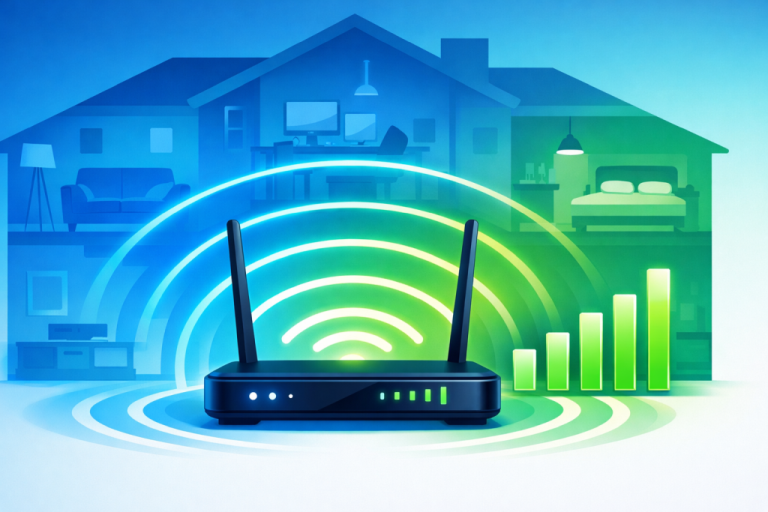
How to Fix WiFi Problems: 7 Solutions That Work
Is your WiFi constantly dropping? Pages loading at a snail’s pace? You’re definitely not alone. WiFi connection problems are one of the most frustrating tech issues millions of people face every single day.
The good news? Most WiFi problems have simple solutions you can fix yourself in minutes. Whether you’re experiencing dropped connections, slow speeds, or can’t connect at all, this guide will walk you through exactly how to fix WiFi problems step by step.
In this comprehensive guide, you’ll discover 7 proven solutions that resolve over 90% of WiFi issues. No technical expertise required – just follow along, and you’ll be back online before you know it.
What You’ll Need
Before we dive into troubleshooting, here’s what you’ll need:
- Your WiFi router (the device that creates your wireless network)
- A device with WiFi capability (computer, smartphone, or tablet)
- 5-10 minutes of your time
- Your WiFi password (if you need to reconnect)
- No technical experience required!
1. Restart Your Router – The Quick Fix That Works
It might sound too simple, but restarting your router is the single most effective solution for WiFi problems. This quick fix resolves approximately 60% of connection issues instantly by clearing temporary glitches and refreshing your network.
When your router runs continuously for weeks or months, it can develop memory leaks, cached data conflicts, and processing bottlenecks. A simple restart clears all of this out.
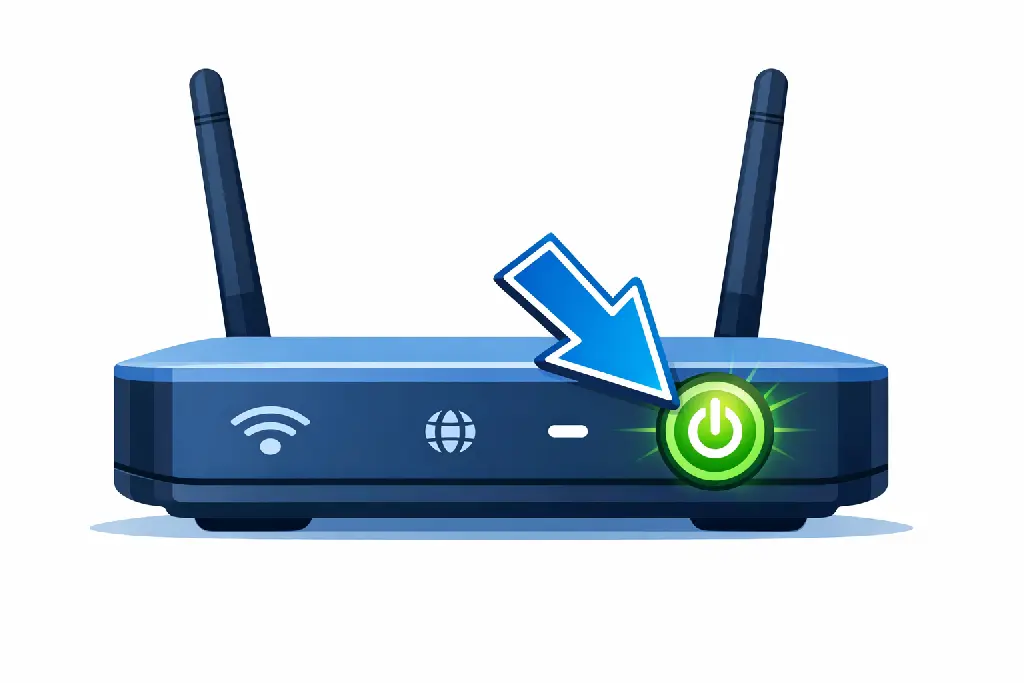
How to Restart Your Router Properly:
- Unplug the power cable from the back of your router
- Wait a full 30 seconds (this ensures capacitors fully discharge)
- Plug the power cable back in
- Wait 2-3 minutes for the router to fully boot up (all lights should stabilize)
- Try connecting your device again
Pro tip: If this solves your problem but it keeps coming back every few days, your router might be overheating or outdated. Consider upgrading to a newer model or ensuring it has proper ventilation.
2. Forget and Reconnect to Your Network
Sometimes your device stores corrupted network settings that prevent proper connection. By “forgetting” the network and reconnecting fresh, you force your device to establish a clean connection with updated credentials.
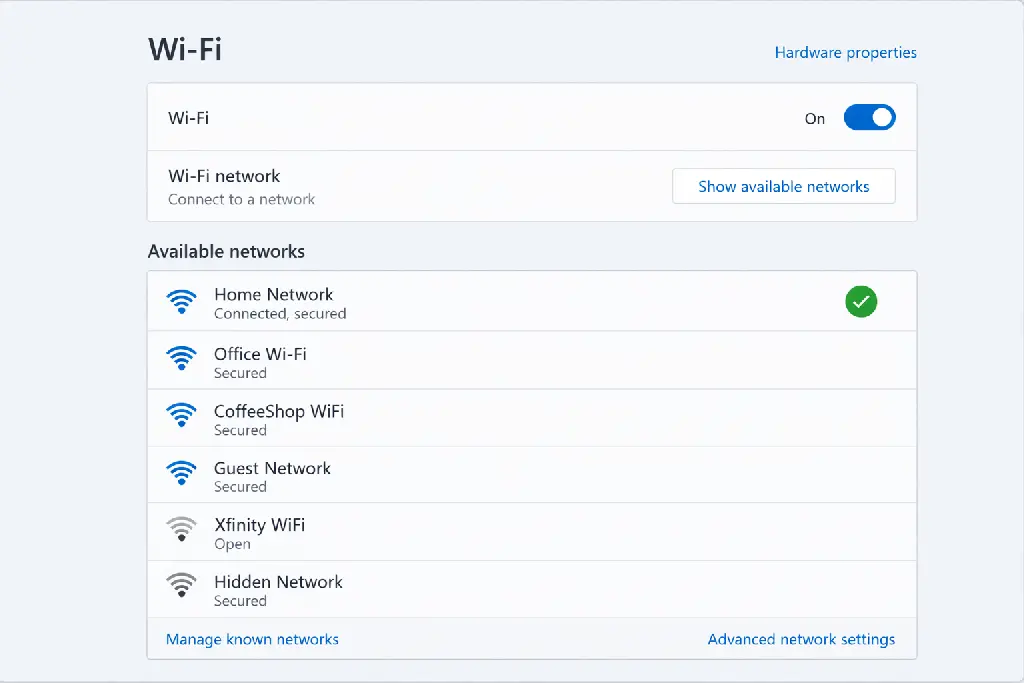
For Windows 10/11:
- Click the WiFi icon in your taskbar
- Right-click on your network name
- Select “Forget”
- Click the WiFi icon again and select your network
- Enter your password and connect
For Mac:
- Click the WiFi icon in the menu bar
- Select “Network Preferences” or “Open Network Preferences”
- Click “Advanced” (bottom right)
- Select your network from the list and click the minus (-) button
- Click “OK” then reconnect to your network with the password
For smartphones (iOS/Android):
Go to WiFi settings, tap on your network, and select “Forget Network” or “Forget This Network,” then reconnect.
3. Update Your Network Drivers (Windows Users)
Outdated or corrupted network drivers are a common culprit behind persistent WiFi problems. Your network adapter driver is the software that allows your computer to communicate with your WiFi hardware. When it’s outdated, connection issues inevitably follow.
How to Update Network Drivers:
- Press Windows Key + X and select “Device Manager”
- Expand “Network adapters” by clicking the arrow
- Right-click on your WiFi adapter (usually contains “Wireless” or “WiFi” in the name)
- Select “Update driver”
- Click “Search automatically for drivers”
- Follow the on-screen instructions and restart your computer when finished
If Windows says your drivers are up to date but you’re still having problems, visit your computer manufacturer’s website to download the latest drivers directly. This often provides newer versions than Windows Update.
Mac users:
macOS updates drivers automatically, so if you’re on the latest version of macOS, your drivers should be current.
4. Move Your Router to a Better Location
WiFi signals don’t travel through walls, floors, and metal objects very well. Poor router placement is one of the most overlooked causes of weak WiFi signals and connection problems. The right location can dramatically improve your connection quality.
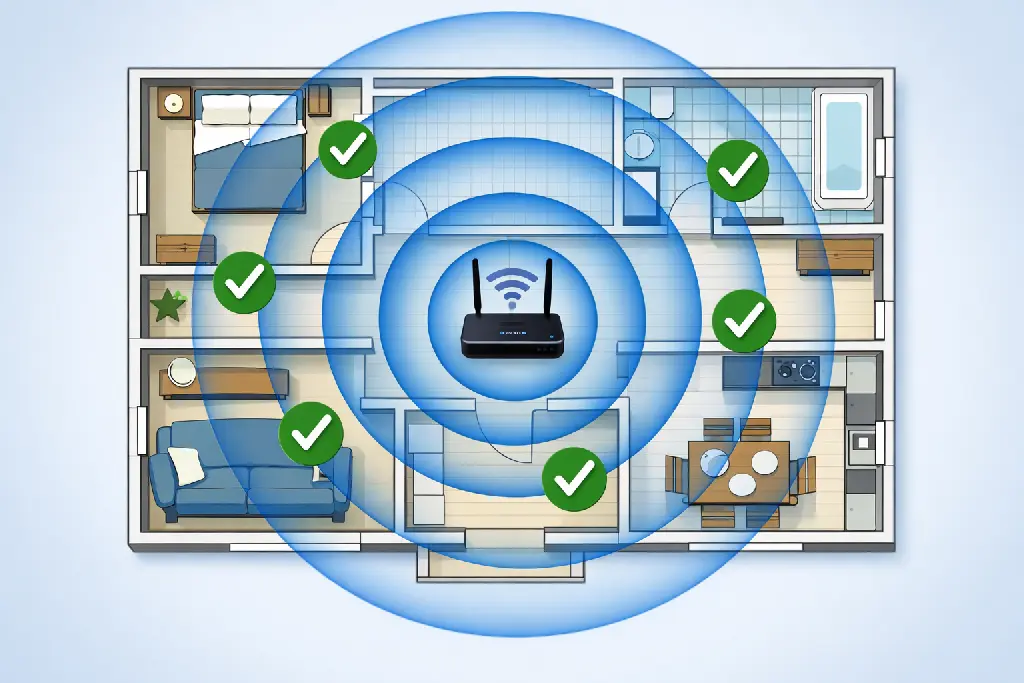
Optimal Router Placement Rules:
- Place it centrally in your home (not in a corner)
- Position it elevated (on a shelf or mounted high on a wall)
- Keep it away from metal objects and appliances
- Avoid placing it near microwaves, cordless phones, or baby monitors
- Don’t hide it in a closet or cabinet – WiFi signals need open space
- Keep it away from aquariums and thick walls
If your home is large or has multiple floors, a single router might not provide adequate coverage. In this case, consider using WiFi extenders, mesh systems, or upgrading to a more powerful router.
5. Change Your WiFi Channel to Reduce Interference
Think of WiFi channels like radio stations – when too many routers in your area use the same channel, they interfere with each other. This is especially common in apartment buildings where dozens of networks overlap. Switching to a less crowded channel can instantly improve your connection.
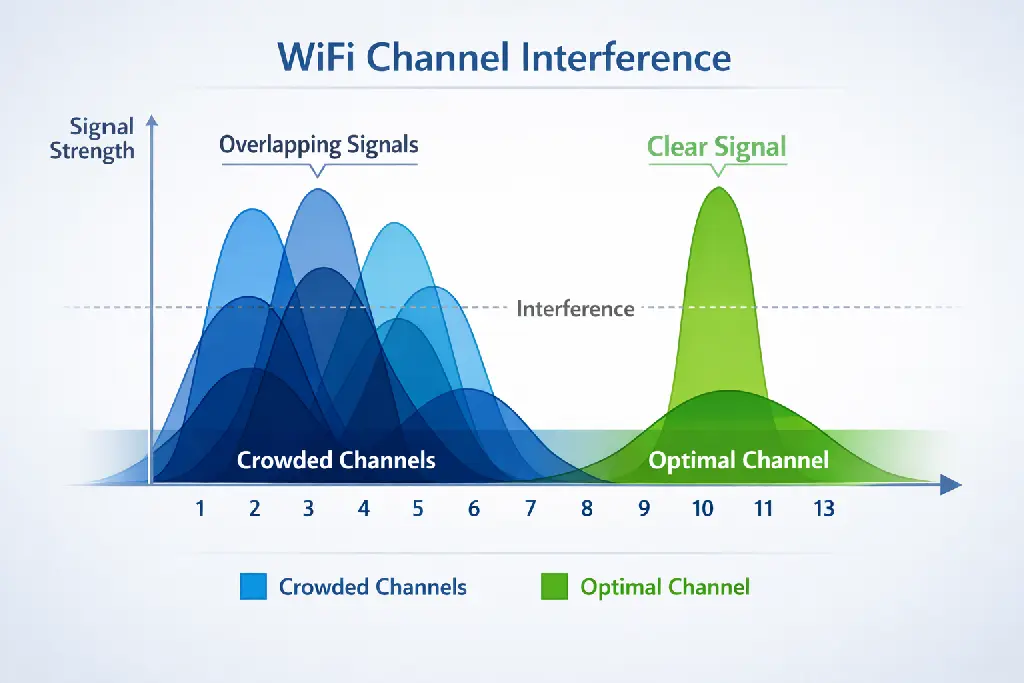
How to Change Your WiFi Channel:
- Open a web browser and type your router’s IP address (usually 192.168.1.1 or 192.168.0.1)
- Log in with your admin credentials (check the router’s label if you haven’t changed them)
- Navigate to WiFi or Wireless settings
- Look for “Channel” settings
- Try channels 1, 6, or 11 for 2.4GHz networks (these don’t overlap)
- For 5GHz, any channel should work as they’re less crowded
- Save settings and restart your router
Pro tip: Use free tools like WiFi Analyzer (Android) or NetSpot (Windows/Mac) to scan which channels are least congested in your area before switching.
6. Switch to a Different DNS Server
DNS (Domain Name System) servers translate website names into IP addresses. Sometimes your default DNS servers from your internet provider are slow or experiencing issues, making websites load sluggishly or fail to connect entirely. Switching to faster, more reliable DNS servers can resolve these problems.
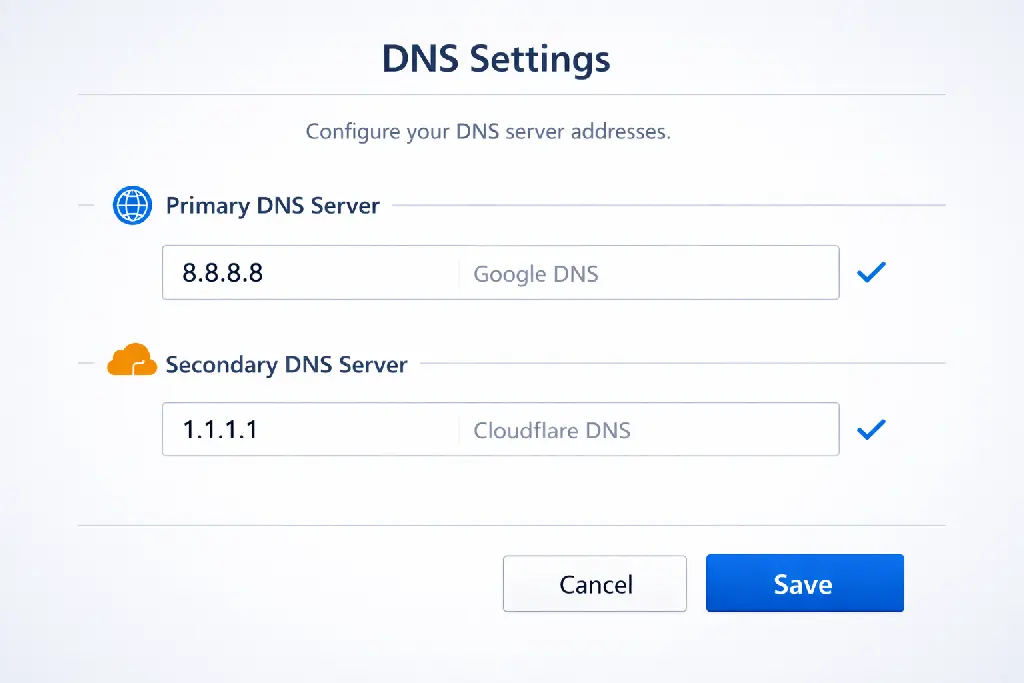
Recommended Free DNS Servers:
- Google DNS: 8.8.8.8 and 8.8.4.4
- Cloudflare DNS: 1.1.1.1 and 1.0.0.1 (fastest)
- OpenDNS: 208.67.222.222 and 208.67.220.220
How to Change DNS on Windows:
- Right-click the network icon in your taskbar and select “Network and Internet settings”
- Click “Change adapter options”
- Right-click your WiFi connection and select “Properties”
- Select “Internet Protocol Version 4 (TCP/IPv4)” and click “Properties”
- Select “Use the following DNS server addresses”
- Enter your preferred DNS (e.g., 1.1.1.1) and alternate DNS (e.g., 1.0.0.1)
- Click OK and close all windows
On Mac:
Go to System Preferences → Network → Advanced → DNS, then add your preferred DNS servers.
7. Reset Your Network Settings (Last Resort)
If none of the previous solutions worked, a complete network reset might be necessary. This clears all network configurations and starts fresh, which resolves stubborn issues caused by conflicting settings or corrupted files. Note that you’ll need to reconnect to all your WiFi networks afterward.
Windows 10/11 Network Reset:
- Open Settings (Windows Key + I)
- Go to Network & Internet
- Scroll down and click “Network reset”
- Click “Reset now” and confirm
- Restart your computer when prompted
- Reconnect to your WiFi network
On Mac: Go to System Preferences → Network, select WiFi, click the minus (-) button to remove it, then click the plus (+) to add it back.
On smartphones, look for “Reset Network Settings” in your device’s general or network settings.
Common WiFi Problems and Quick Fixes
WiFi Connected But No Internet
This frustrating issue means your device connects to the router successfully, but the router can’t access the internet. First, check if other devices can connect to the internet. If not, restart your modem (the device from your internet provider) along with your router. Wait 30 seconds between unplugging and plugging back in.
If only one device has this problem, forget the network on that device and reconnect. You can also try changing your DNS servers to Google DNS (8.8.8.8) or Cloudflare (1.1.1.1) as described in Solution 6 above.
WiFi Signal Keeps Dropping
Intermittent connections are often caused by interference or weak signals. Start by moving closer to your router to see if the problem persists. If it does, the issue is likely with the router itself – try restarting it and updating its firmware.
If drops only happen at certain times, check what else is happening on your network. Streaming 4K video, large downloads, or multiple devices can overwhelm older routers. Consider upgrading to a router that supports the latest WiFi 6 standard for better performance.
Slow WiFi Speeds
Slow speeds but stable connections? First, test your internet speed using Speedtest.net to verify your actual connection speed. If you’re getting the speeds you pay for from your provider, but WiFi still feels slow, try these quick fixes:
- Switch from 2.4GHz to 5GHz band (faster but shorter range)
- Close bandwidth-heavy applications you’re not using
- Move closer to your router
- Check for background updates on your devices
- Limit the number of connected devices
For persistent speed issues, you might need a router upgrade or need to work on improving your overall network setup.
Pro Tips for Maintaining Strong WiFi
Prevention is always better than troubleshooting. Follow these tips to minimize WiFi problems:
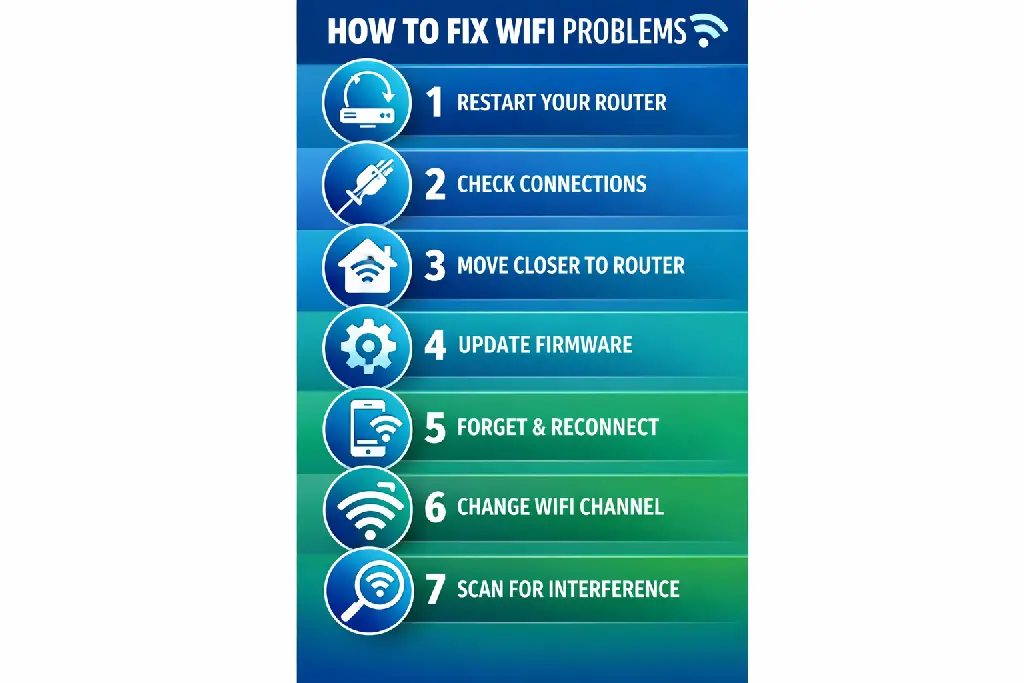
- Restart your router monthly (set a calendar reminder)
- Update router firmware regularly (check manufacturer’s website)
- Use strong, unique passwords for your WiFi network [Link to: How to Secure Your Home WiFi Network – future article]
- Keep your router’s ventilation clear – overheating causes connection drops
- Consider upgrading routers older than 3-4 years (WiFi technology improves quickly)
- Position router antennas perpendicular to each other (one vertical, one horizontal) for better coverage
- Disable WiFi on devices you’re not using to reduce network congestion
Frequently Asked Questions
Why does my WiFi keep disconnecting on my phone but not my laptop?
This usually happens because phones have aggressive power-saving features that disconnect WiFi when the screen is off or the battery is low. Check your phone’s WiFi settings and disable any “WiFi sleep” or power-saving options. On iPhone, go to Settings → WiFi → Ask to Join Networks and set it to “Ask” or “Notify.” On Android, disable WiFi optimization in your battery settings for better connectivity.
How often should I restart my WiFi router?
Ideally, restart your router once a month to clear accumulated cache and refresh connections. If you’re experiencing frequent issues, restart it weekly. Some modern routers have automatic restart schedules you can enable in the admin settings, typically during low-usage hours like 3 AM.
Can a VPN cause WiFi connection problems?
Yes, VPNs can sometimes interfere with your connection, especially if the VPN server is slow or overloaded. Try disconnecting your VPN temporarily to see if your WiFi issues resolve. If they do, switch to a different VPN server location or consider upgrading to a faster VPN service.
What’s the difference between 2.4GHz and 5GHz WiFi?
2.4GHz offers longer range but slower speeds and more interference from other devices. 5GHz provides faster speeds and less interference but has a shorter range and struggles with walls. Use 5GHz for devices close to your router that need speed (streaming, gaming), and use 2.4GHz for distant devices or smart home gadgets.
Why can’t I connect to WiFi after a Windows update?
Windows updates sometimes install incompatible network drivers or change network settings. First, try restarting your computer and router. If that doesn’t work, roll back your network adapter driver through Device Manager, or use the Network Reset feature in Windows settings to restore default network configurations.
Is it safe to reset my router to factory settings?
Yes, it’s safe, but you’ll lose all custom settings including your WiFi name, password, port forwarding rules, and parental controls. Only do a factory reset as a last resort after trying all other solutions. Make sure to write down your current settings first, and be prepared to reconfigure everything from scratch.
How can I tell if my router is failing?
Signs of a failing router include frequent disconnections even after troubleshooting, extremely slow speeds on all devices, random reboots, overheating, or failure to update firmware. If your router is more than 5 years old and showing these symptoms, it’s probably time for an upgrade to a newer model with better performance and security.
Conclusion
Fixing WiFi problems doesn’t have to be complicated or require technical expertise. By following these 7 proven solutions, you can resolve the vast majority of connection issues yourself in just a few minutes. Start with the simplest fix – restarting your router – and work your way through each solution until you’re back online.
Remember: most WiFi problems stem from simple causes like outdated settings, interference, or poor router placement. Regular maintenance like monthly restarts and keeping your drivers updated will prevent many issues before they start.
Still experiencing persistent issues after trying all these solutions? Your problem might be with your internet service provider, or you may need to upgrade your router hardware. For advanced troubleshooting and ways to optimize your network further, check out our guide on How to Boost WiFi Signal Strength.